
Quick answer
For wan 2.2 comfyui, start with the native 5B TI2V template for either text or image input. Load its matching diffusion model, UMT5 text encoder and Wan2.2 VAE, then run the template defaults. Compare native 14B T2V or I2V only after a working baseline misses a specific quality requirement. Choose WanVideoWrapper for a needed capability unavailable natively. Accept the whole clip in your editor, not just its best frame.
Start with native Wan 2.2 ComfyUI workflows
A downloaded workflow can open perfectly while pointing to the wrong model or VAE. Even a completed render can turn a cup handle into a different shape. Your first goal is therefore a native Wan2.2 5B clip that both runs and survives inspection, before choosing a more elaborate route.
The 5B TI2V model accepts text or an initial image; TI2V means text-and-image-to-video. Native templates use ComfyUI core nodes. WanVideoWrapper is a separate custom-node integration, with its own maintenance. Its maintainer recommends native workflows unless you need a model or feature they do not yet support.
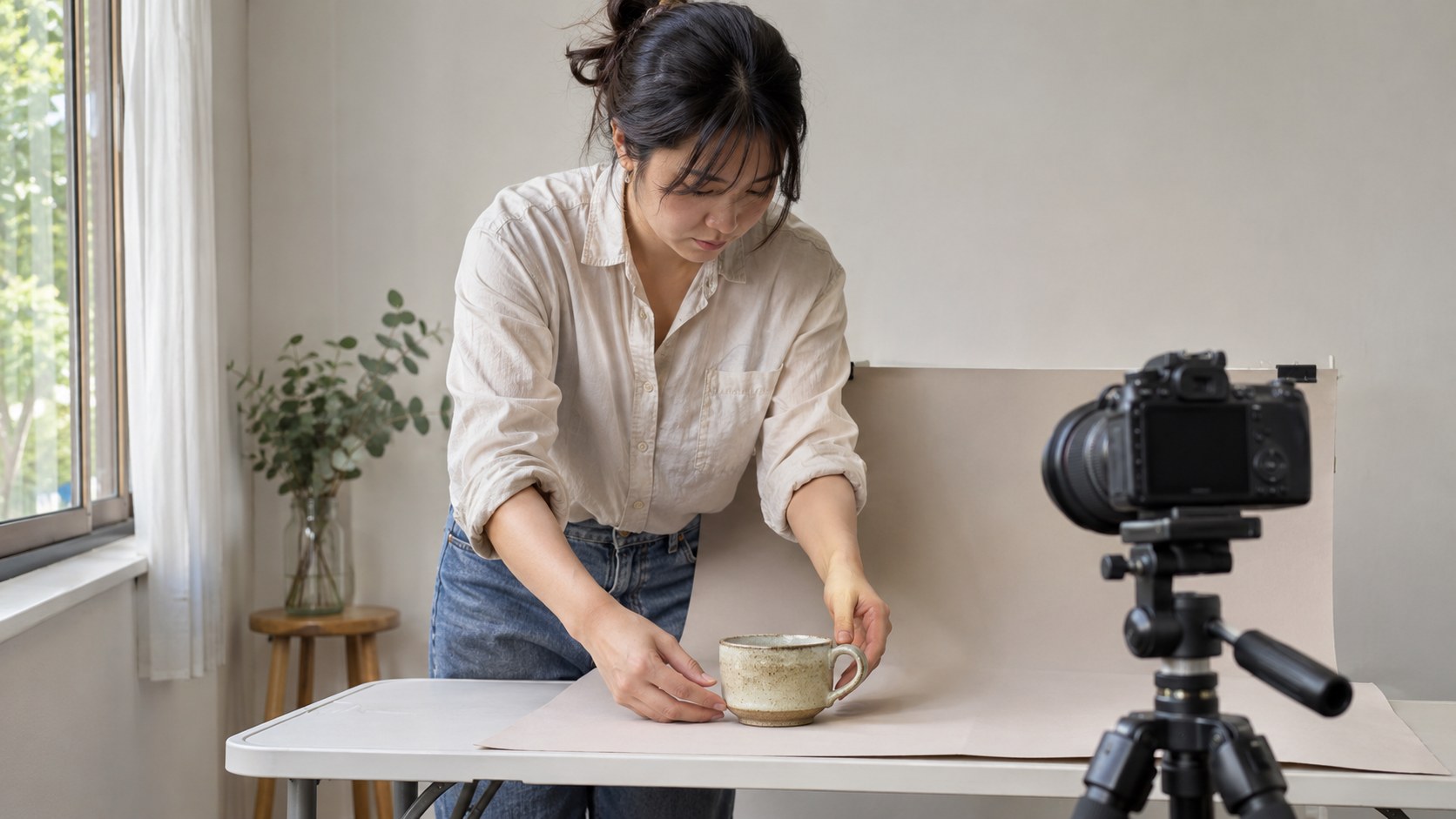
Consider an illustrative scenario, with invented outcomes: a creator owns a ceramic-cup photograph and wants a gentle camera push on an 8GB GPU. They are tempted by a 14B GGUF graph with acceleration add-ons. Starting with 5B instead separates two questions: can this installation generate a viewable file, and does that file preserve the cup? A quality shortfall can justify a larger-model comparison; a missing native capability can justify the wrapper.
Choose the workflow and matching model files
Wan 2.2 names a model family, not one interchangeable download. Choose the input task first, then keep its workflow, diffusion files, text encoder and VAE together. The matrix below gives a starting route and a reason to keep or leave it.
| Situation and input | Workflow route | Required component set | Choose or escalate when | Accept or stop |
|---|---|---|---|---|
| First run; text or photograph | Native 5B TI2V | 5B diffusion model, UMT5, Wan2.2 VAE | Establish the baseline; especially with constrained VRAM | Keep if the full clip meets the brief; diagnose failure before escalating |
| Text-only brief; baseline works | Native 14B T2V | T2V high/low-noise pair, UMT5, Wan2.1 VAE | A named quality requirement remains unmet | Keep only a useful improvement within your time and resource limits |
| Source-image brief; baseline works | Native 14B I2V | I2V high/low-noise pair, UMT5, Wan2.1 VAE | Product or motion quality warrants a matched comparison | Check the whole subject; stop if no useful improvement |
| Required feature absent natively | WanVideoWrapper | Files and custom nodes required by that specific graph | You can name the missing native capability and accept maintenance | Verify the capability; use native if it already meets the task |
The native 14B routes use two experts: the high-noise model handles the early, rough formation of the video; the low-noise model refines it later. They are successive parts of generation, not alternative quality settings. Downloading just the low-noise file does not provide a complete pair. Likewise, an image-to-video workflow needs I2V experts, not a mixture of one I2V file and one T2V file.
For native text-to-video, search Workflow Templates for Wan2.2 14B T2V. Put wan2.2_t2v_high_noise_14B_fp8_scaled.safetensors and wan2.2_t2v_low_noise_14B_fp8_scaled.safetensors in ComfyUI/models/diffusion_models/. Select the high-noise file in the first Load Diffusion Model node and the low-noise file in the second. Enter your scene prompt in CLIP Text Encoder, retain the template settings for its initial configuration check, and click Run.
For native image-to-video, use the Wan2.2 14B I2V workflow from the official ComfyUI examples with wan2.2_i2v_high_noise_14B_fp8_scaled.safetensors and wan2.2_i2v_low_noise_14B_fp8_scaled.safetensors. Both belong in ComfyUI/models/diffusion_models/. Select high-noise first, low-noise second, upload the initial image in Load Image and enter a motion prompt. These explicitly matched FP8 I2V files avoid combining an I2V download with T2V loader selections.
Both native 14B routes also need umt5_xxl_fp8_e4m3fn_scaled.safetensors in ComfyUI/models/text_encoders/, selected in Load CLIP, and wan_2.1_vae.safetensors in ComfyUI/models/vae/, selected in Load VAE. The encoder turns the prompt into model input; the VAE converts between the video representation and visible frames. The 14B VAE is deliberately the Wan2.1 file. Native 5B uses the different Wan2.2 VAE listed in the next section.
GGUF is a model-file format choice; WanVideoWrapper can load it through its main model loader. LightX2V four-step LoRAs are additional acceleration-related components listed by ComfyUI. Neither label tells you whether the graph is for text or image input, and neither is required for the native baseline. Treat format, acceleration and integration as separate decisions. A promise of fewer steps is not proof of a better finished clip or shorter complete job on your machine.
Run a first clip and decide whether to keep it
Open Workflow Templates in an updated, compatible ComfyUI installation and search for Wan2.2 5B. Use the Comfy-Org/Wan_2.2_ComfyUI_Repackaged files identified by the native tutorial. Keep the supplied generation settings for the first run so a failure has fewer possible causes.
- Download wan2.2_ti2v_5B_fp16.safetensors into ComfyUI/models/diffusion_models/ and select it in Load Diffusion Model.
- Download umt5_xxl_fp8_e4m3fn_scaled.safetensors into ComfyUI/models/text_encoders/ and select it in Load CLIP.
- Download wan2.2_vae.safetensors into ComfyUI/models/vae/ and select it in Load VAE. Check the filename rather than choosing another VAE already on disk.
- For text-to-video, leave optional image input disabled and enter your prompt in CLIP Text Encoder. Describe the subject, its main action and the camera movement.
- For image-to-video, enable Load Image with Ctrl+B if it is disabled, then upload your source image. Enter a motion prompt and leave the other template settings unchanged.
- Click Run or press Ctrl/Cmd+Enter. Inspect the resulting video and save the workflow that completed before changing dimensions or frame count in Wan22ImageToVideoLatent.
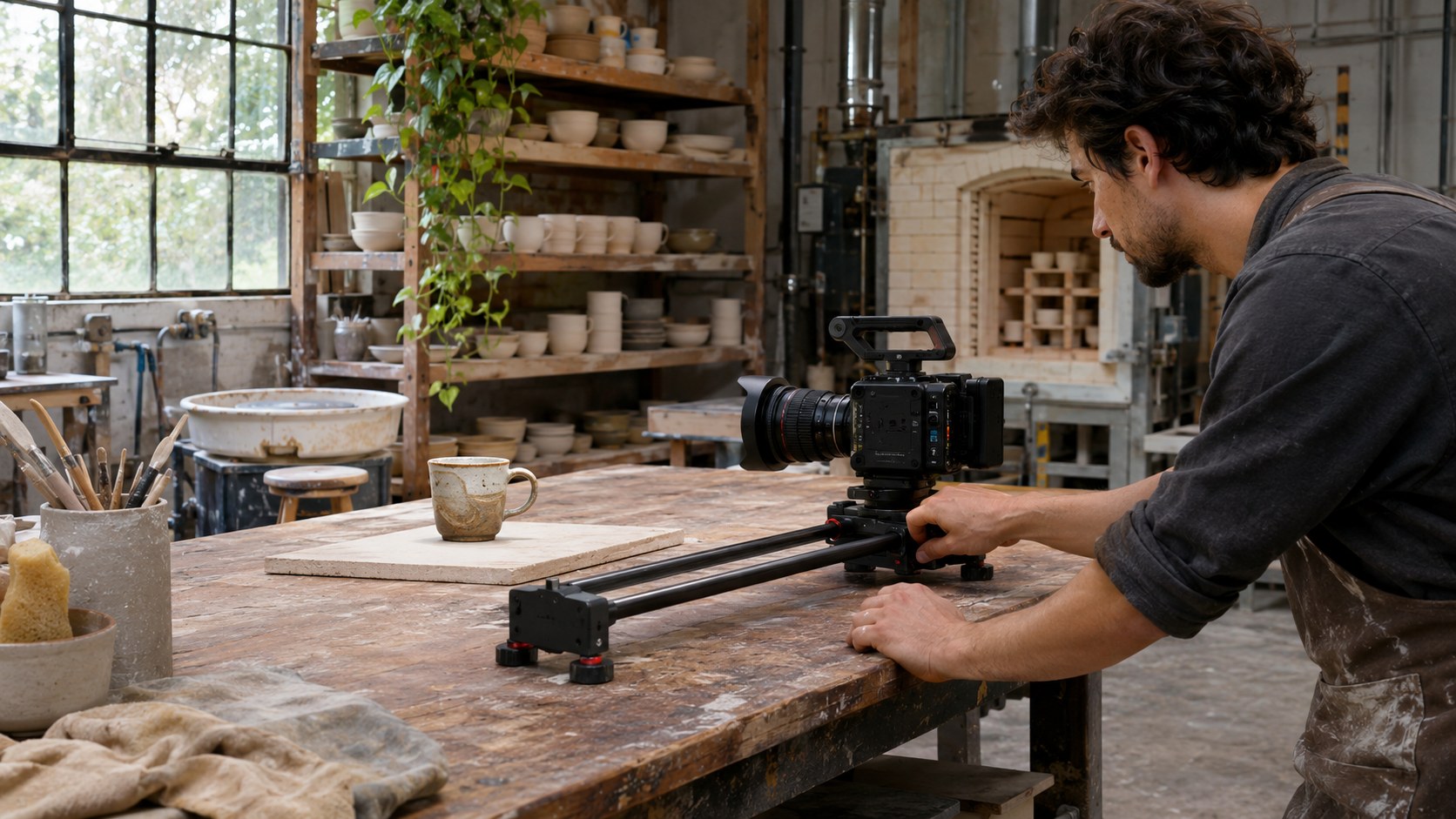
For the cup scenario, assume an updated, compatible installation and an owned photograph. GPU capacity makes no promise about system RAM, storage or runtime. Retain the template dimensions and frame count for this baseline, without claiming a final resolution or duration. The creator proposes hypothetical personal limits of two attempts and 20 minutes to a usable baseline clip; these are not Wan performance figures.
The initial prompt is: “A ceramic cup rests on a wooden table. The camera slowly pushes closer. Soft window light, stable cup shape, no object movement.” The photograph establishes the subject; the prompt requests restrained motion so cup preservation remains easy to judge.
Turnaround means elapsed time from starting the creative job to a usable file, including generation, review, retries and fixes. Record downloads and installation separately as setup time. Sampler completion alone leaves out the work between rendering and readiness for the edit.
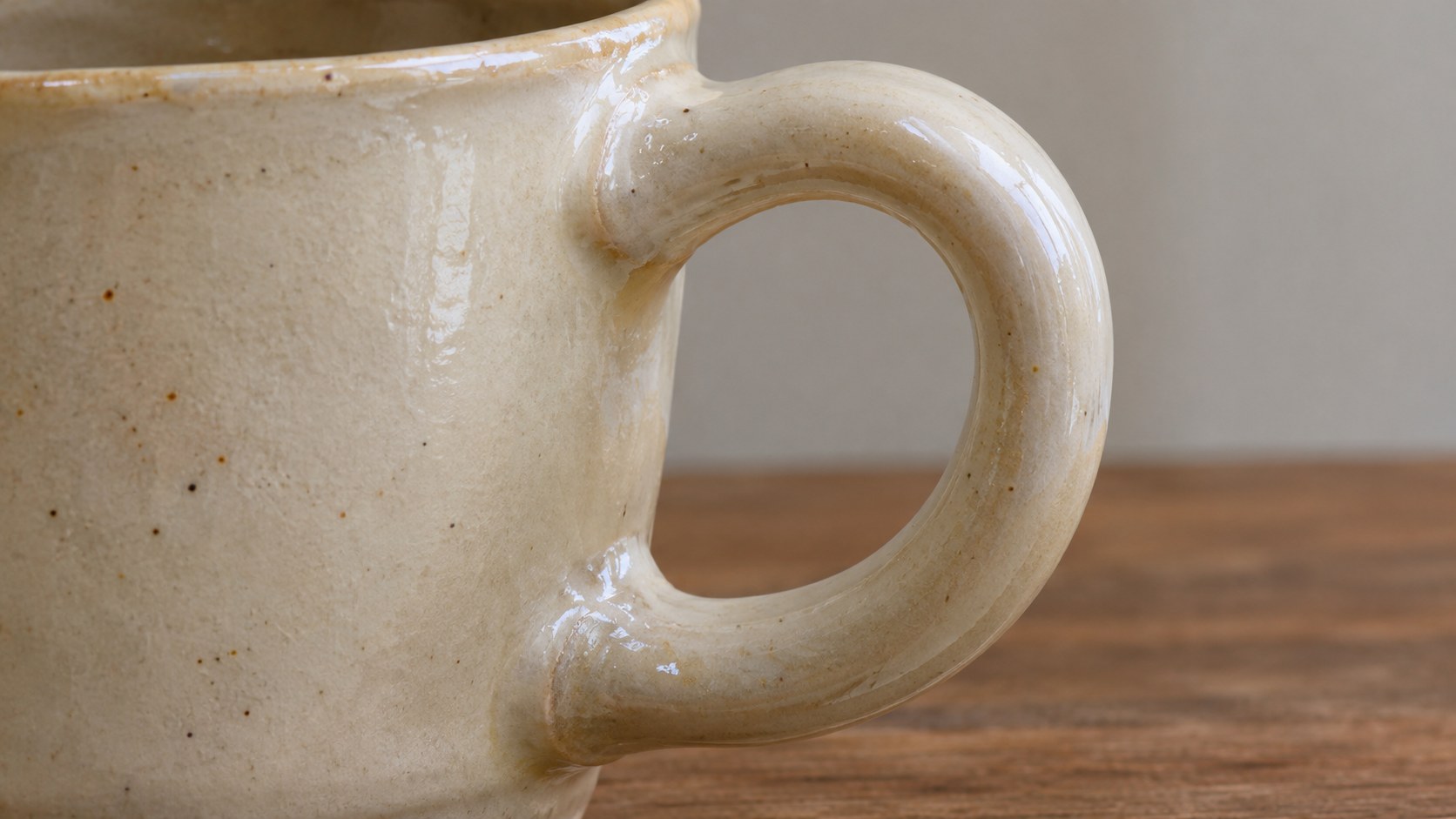
In the scenario, the first clip completes with attractive lighting, but the handle changes shape halfway through. The creator rejects it: a product animation must still depict the product. They simplify only the motion instruction to “Very slow camera push toward the stationary cup,” retaining the photograph and other settings for one controlled rerun.
The next clip preserves the cup and restrained movement within the proposed limit. The creator watches the whole file, inspects beginning, middle and end, then opens it in the intended editor. Playback works; dimensions and duration match the baseline settings. It enters the edit as a usable baseline, so 5B remains the working route. Different final delivery dimensions or duration still require an acceptance run.
Also check for flicker, unexpected objects and motion that contradicts the brief. Inspect critical lettering or surface details throughout: an initial image does not guarantee their preservation. Record the observable reason for rejection so another attempt addresses a defect rather than a vague wish for “more quality.”
Compare 14B when 5B completes reliably but misses a named requirement after a focused creative revision. For the cup, use native 14B I2V with the same photograph, brief, target dimensions, duration and acceptance criteria. Record the changed model/workflow route. A template-default check can establish execution; the quality comparison must use matched delivery targets. Keep only a useful improvement within your time and resource limits.
VRAM limits and targeted fixes
ComfyUI documents native 5B as a starting point for 8GB VRAM with native offloading, which moves model work between GPU memory and system memory as needed. That guidance applies to this route, not every Wan configuration, and it does not guarantee a runtime or a successful final-size render.
The upstream 80GB requirement concerns its particular 14B command-line example, not every ComfyUI route. An RTX 3090 label alone cannot predict fit or runtime either. Record GPU and VRAM, RAM, available storage, version, files, dimensions, frame count and competing GPU use. There is no universal 14B ComfyUI memory or runtime figure established here.
- Missing template: update ComfyUI and check Workflow Templates again. Missing core node: inspect startup import errors and release compatibility. Use a compatible release, or stop that workflow until the required node is supported.
- Loader failure: check filename, folder and loader selection. In a 5B graph with wan_2.1_vae.safetensors selected, change it to wan2.2_vae.safetensors. In 14B, verify both experts belong to the same input task.
- Out of memory: return to native 5B and reduce dimensions or frame count for one controlled retry. A smaller successful render diagnoses capacity; it does not prove your final delivery settings fit. Stop local escalation if reduced 5B tests keep failing.
- Completed but distorted video: revise one creative variable and inspect again. Installing nodes will not repair the cup handle in an already completed clip. Investigate wrapper LoRA-memory or compile changes only if the failing graph actually uses that wrapper.
Save the failing graph and exact error. Retry after one identified change; repeating the same failure adds waiting without diagnosis. One successful run proves one configuration worked for one brief. Repeat the actual delivery task within your chosen attempt limit before relying on its production capacity.
Wan2.2 models are Apache 2.0 licensed and allow commercial use subject to license obligations; retain relevant license information. This does not establish rights to every input photograph or depicted asset. Use owned or authorized material and replace it if permission is unclear. Review the cup animation for misleading product changes before publication: source permission and an accurate depiction are separate checks.
Make the next comparison repeatable
Keep the accepted cup workflow as the reference for the next test. Preserve the source photograph, creative brief and acceptance criteria; otherwise a different result may reflect a different task rather than a better route. The next decision is whether a changed workflow earns its extra time and maintenance.
Retain exact model files, ComfyUI version, prompts, seed where exposed, dimensions, frame count, hardware and test date alongside the graph. Record attempts, failures and turnaround, with setup time separate. Keep rejected outputs or their specific defects to show what a later result actually improves.
If the cup works in the edit, continue with that route. If a later brief exposes a weakness, compare the matching alternative against the saved baseline. Stop when it cannot deliver within your preset limits. More components create options to test, not evidence of a usable asset.
Carry the baseline into your next test
Explore Benched AI and read its four-step testing method at the methodology destination. Apply it to the saved cup workflow: use the same task and source material, document configuration and date, measure time through a usable file, and report failures. Benched AI explains an editorial evaluation process rather than generating or installing video tools. The result is a comparable test record for deciding whether another route improves your actual brief.
Frequently asked questions
Do I need an image to run Wan2.2 5B?
No. The native TI2V template supports text-only input with the optional image node disabled. Enable Load Image and upload a source photograph when you want image-to-video.
Can I use the same VAE for native 5B and 14B?
Use the file required by the route: wan2.2_vae.safetensors for native 5B and wan_2.1_vae.safetensors for the native 14B workflows described here.
Are high-noise and low-noise models alternatives?
No. Native 14B uses both in successive stages. Select the task-matched high-noise expert first and low-noise expert second; do not mix T2V and I2V files.
Is GGUF required for Wan 2.2 in ComfyUI?
No. The native baseline here uses the listed safetensors files. GGUF is another model format, supported by the wrapper loader; choosing it does not select your input task.
Should I add LightX2V before my first run?
Establish the native baseline first. LightX2V acceleration-related components add another variable, and their presence alone does not establish a speed or quality gain for your brief.
Does an 8GB GPU guarantee a working clip?
No. The documented guidance concerns native 5B with offloading. Actual fit depends on the configuration and machine; test the unchanged template before increasing the job size.
Why does a completed render still fail the brief?
Completion confirms execution, while acceptance concerns the entire asset. Altered product shape, unwanted movement or failed playback in the intended editor can make a completed clip unusable.
Can I publish a product animation commercially?
The model license permits commercial use subject to its obligations. Also use authorized source material and review the finished animation for misleading product changes before publication.